
Remove underline and changing hyperlinks color
By default, whenever I create a hyperlink, Outlook turns the text color into blue and underlines it.
This is of course very recognizable but also not very modern as most web designs no longer underline hyperlinks. I’m also simply a bit bored with the blue.
Is there any way I can remove this default underline and change the color into for instance our company's color (green)?
 While the blue color and underline of hyperlinks makes them very recognizable for the receiver, there are good reasons to change it in some cases.
For instance, it can increase readability, especially when there are many links in a short message, or it simply clashes with the other (background) colors in the currently selected template or stationery.
Changing the hyperlink style
To change the default color and/or underlining of hyperlinks, you can alter the defined style of hyperlinks while composing a new message.
- Type or insert your hyperlink like you would normally do.
- Open the Styles and Formatting pane;
- tab: Format Text-> click on the expand icon of the Styles group
- or use the keyboard shortcut; CTRL+SHIFT+ALT+S
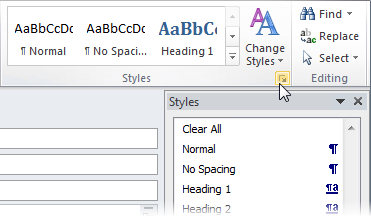
Opening the Styles pane via the dialog launcher icon.
- Right click on the Hyperlink entry in the Styles and Formatting pane and choose Modify…
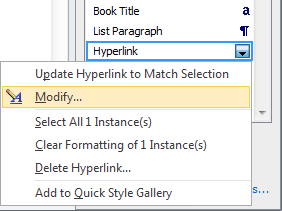
Modify the default Hyperlink style.
- Change the font settings for your hyperlink.
For instance, remove the underline, enable bold and change the color to green. - To change it for all new messages that you create; Select the option: New documents based on this template

Apply modified Hyperlink to current and all new messages.
(click on image for full dialog view)
- Press OK to apply the style changes and to close the dialog.
- Close the Styles pane via the close icon (X) in the top right corner.

