
File tab selected and Ribbon not visible
Upon opening a message in Outlook, it opens with the File tab selected. It used to open with the Message tab selected.
How do I change it so that the Message tab is selected when the message is opened?
 The File tab is always colored in Outlook; This doesn't mean that it is selected.
More likely is that you have minimized the Ribbon, which is why you don't see the Home or Message tab by default.
Restore the Ribbon
There are various ways to make the Ribbon tab visible again:
- Keyboard shortcut: CTRL+F1
- Double click on any of the tabs (which is probably what made it hidden for you).
- Click on any of the tabs and then click on the
 icon in the top right corner.
 - Click on the
 icon in the top right corner in Outlook 2010.
 - Click on the
 icon in the top right corner in Outlook 2013 or later to bring up the Ribbon Display Options menu and select: Show Tabs and Commands.

When the Ribbon is minimized in Outlook 2010, it looks like the File tab is selected. The icon in the top right corner (here highlighted), expands it again.
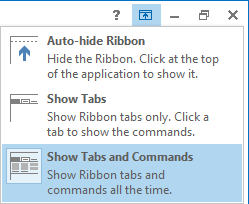
In Outlook 2013 and later, you’ll find a Ribbon Display Options button in the the top right corner between the Window State icons and the Help icon.
When you click on this button, a menu will show up which allows you to control the Ribbon State.
The Auto-hide Ribbon State will also maximize your Outlook window and hide the Status Bar. This will make it behave more like a full-screen app.
Working with a minimized Ribbon
 Hiding the Ribbon can save you some vertical screen real estate, which can be particularly handy on a netbook or a tablet as they usually have smaller screens with a lower resolution.
When you've minimized the Ribbon, a single click on one of the tabs will show you the available commands on that tab. This is similar to expanding a menu in "classic" applications or previous versions of Outlook.
After clicking on a command, the Ribbon will automatically hide itself again.
So compared to working with a maximized Ribbon, you'll only need one additional click when you want to access commands on the Home menu or need to use multiple commands from a single Ribbon tab in succession.
To compensate the additional click, you could choose to add the commands which you use most often to the Quick Access Bar or learn their keyboard shortcuts.

Quick Access Toolbar (QAT)
Note: Even though Outlook 2013 and later don’t show a icon in the top right corner, double clicking on any of the tabs or using the CTRL+F1 keyboard shortcut will also expand or hide the Ribbon.
