
Sent Items folder only shows my name
When I look at my Sent Items folder, I only see my name instead of the name of the person I have sent the message to.
How can I change this so it will show the recpient's name?
 In this case, your Sent Items folder is configured with the "From" column instead of showing the "To" column or has not been set to the “Sent To” view.
When you have an Archive folder with a Sent Items folder, you may only see your name as well as these folders usually don’t have a “Sent To” view at all. You can then still add the column manually.
Sent To view
By default, Outlook has a "Sent To" view which is configured to show the "To" column. Depending on your version of Outlook, you can select this view via;
- Outlook 2003
View-> Arrange By-> Current View-> Sent To - Outlook 2007
View-> Current View-> Sent To - Outlook 2010, Outlook 2013 and Outlook 2016
tab View-> button Change View-> Sent To
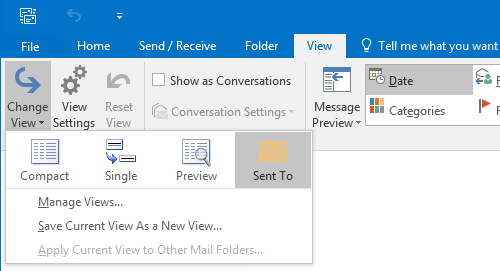
Changing the View of the Sent Items folder to the Sent To view.
Reset the view
If this doesn't work, you can also reset the view. To do this select your Sent Items folder and go to;
- Outlook 2003 and Outlook 2007
View-> Arrange By-> Custom...-> button Reset Current View - Outlook 2010, Outlook 2013 and Outlook 2016
tab View-> button Reset View
Add the column manually
If you do not want to reset the view, you can also add the column manually;
- Outlook 2003 and Outlook 2007
View-> Arrange By-> Custom...-> button Fields - Outlook 2010, Outlook 2013 and Outlook 2016
tab View-> button View Settings-> button Columns
On the right list select "From" and press Remove.
On the left list select "To" and press Add.
Additionally you can use the Move Up and Move Down button to sort your fields. By default the "To" field is listed between "Attachment" and "Subject".
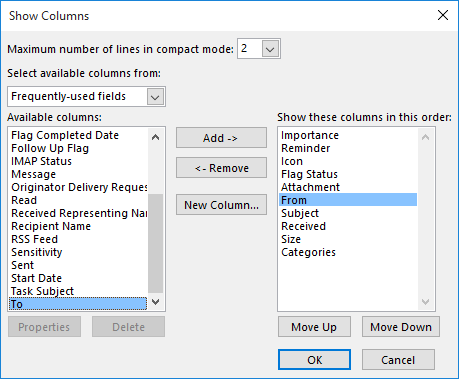
In the Sent Items folder, the To column should be added to the right list.
