
Enlarge font in the Reading Pane
We use Outlook and my employer has trouble reading some email that is displayed on his hi-res monitor because the font sizes display so small. He doesn't like using Magnifier.
Is it possible to enlarge the display of a received email either in the Reading Pane or after opening it?
 Using a high resolution has the benefit of a sharper display which is more relaxed for your eyes. The downside of this is that your font might become really small and hard to read which is anything but relaxed for your eyes.
There are several ways to enlarge the font in the Reading Pane in Outlook;
Method 1: Zoom in on the message
 You can use CTRL+Mouse Scroll in the Reading Pane to zoom in and out per message. Depending on your mouse/scroll sensitivity you might need to scroll quite a bit before the font size will change.
You can also zoom via the zoom slider in the bottom right corner.

When you are using Outlook for Microsoft 365, you can click on the percentage indicator next to the slider (in this case 100%) to set a persistent zoom factor by enabling the option; Remember my preference.
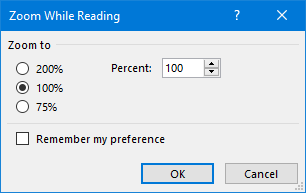
Note: In other version of Outlook, the zooming factor set via this slider or by scrolling is not persistent. To still set a default zooming level for these Outlook versions, you can use the add-in Zoom Email Windows from Sperry Software (discount code BH93RF24 ).
Method 2: Customize the font size for Plain Text messages
 For Plain Text you can modify the display font via;
- File-> Options-> section Mail-> button Stationery and Fonts…
You can combine this with Method 3 so that all messages are shown in Plain Text with your selected font.
Method 3: Convert HTML messages to Plain Text
 Another way to go for HTML formatted emails would be to set the option to read all mail in Plain Text. Together with your modified Plain Text font settings, the larger font size will always apply.
Via the Infobar, which will display on top of a converted message, you can easily change it back to HTML format when needed (like for some special layout or newsletters).
To configure Outlook to display all the email in Plain Text by default;
- File-> Options-> section Trust Center-> button Trust Center Settings…-> E-mail Security-> Read all standard mail in plain text
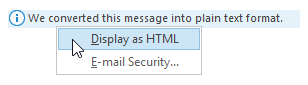
Convert messages back to HTML.
Method 4: Changing the scaling or DPI settings in Windows
 If font sizes is a general issue throughout Outlook, Windows and other applications, you might want to consider customizing the scaling or DPI settings in Windows instead.
This is especially recommended when you are using a smaller screen with a high resolution and also on a larger screen with a 4K, 5K or higher resolution.
Windows 11
- Right click on an empty spot on your Desktop and choose;
Display Settings. - You can set the text scaling percentage in the section: Scale & layout.
- To set a custom scaling percentage, press the arrow right from the dropdown list.
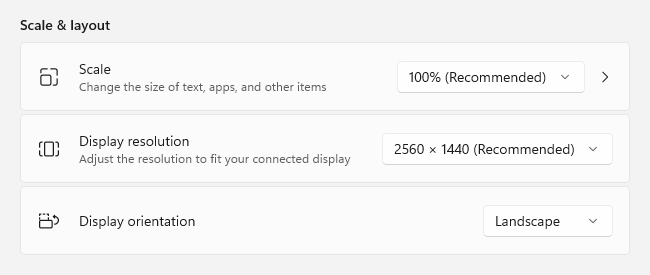
Scale & layout settings in Windows 11.
Windows 10
- Right click on an empty spot on your Desktop and choose: Display Settings.
- You can set the text scaling percentage in the section: Change the size of text, apps, and other items
- To set a custom scaling percentage, press the “Advanced scaling settings” shown in the same dialog.
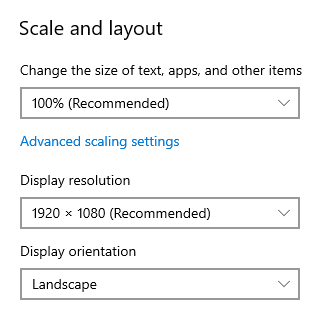
Scale and layout settings in Windows 10.
Note: More Outlook font, size and color customizations can be found in the guide; Fonts, sizes and color settings of the Outlook interface.
