
Backup and restore signatures
I'm moving from my old Windows 7 computer to a new computer running Windows 10. I've already restored my pst-file but that didn't include my signatures.
Where can I find them and how can I move them over?
 Your pst-file indeed doesn't include signatures. The signatures are being kept as separate files in the Signatures folder. You can find this folder in the following location;
- Windows XP
C:\Documents and Settings\%username%\Application Data\Microsoft\Signatures - Windows Vista, Windows 7, Windows 8 and Windows 10
C:\Users\%username%\AppData\Roaming\Microsoft\Signatures
To see this folder you must have "View hidden files and folders" enabled or you can simply copy and paste the above paths in the address bar in Explorer to directly open the folder.
Quickly access the Signatures folder from within Outlook
Another way to quickly access this folder from within Outlook is to hold the CTRL button on your keyboard when clicking the Signatures… button in Options;
- Outlook 2007 and previous
Tools-> Options…-> tab Mail Format-> button Signatures… - Outlook 2010, Outlook 2013 and Outlook 2016
File-> Options-> Mail-> button Signatures…
Just copy all the files that you find there to another location to make a backup.
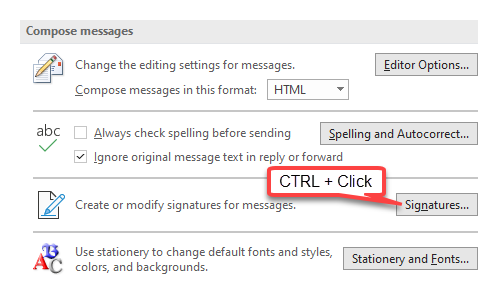
Hold CTRL when clicking on the Signatures button to open the Signatures folder.
Restore the signatures
To restore the signatures, you can simply copy them from your backup location to the Signatures folder. Once restored the signatures they will be directly available in Outlook. However, if you had them configured as the default for a certain account you'll have to reconfigure that.
Note 1: Each signature created via Outlook will exist in 3 different formats; Plain Text (txt), HTML (htm) and Rich Text (rtf). You’ll need all these formats.
Note 2: If you happen to have formatted your old computer already, you can always recreate your signatures by copying them from one of your previously sent messages in your Sent Items folder.
Note 3: For more about signatures also see the guide; Creating, using and managing Signatures.
