
Change the default address list of the Outlook Address Book
I have multiple address lists in Outlook;
- 1 is our internal list (Global Address Book)
- 1 is my business contacts
- 1 contains my private contacts
When I bring up the Address Book in Outlook, by default it shows our internal list. However, I work a lot more with my business contacts in my Contacts folder.
Is there a way I can make my own Contacts folder the default?
 When you use Outlook without an Exchange Account, the default address list when bringing up the Address Book and when pressing the To, Cc or Bcc buttons is your Contacts folder.
When you use and Exchange Account, the default is the Global Address List.
Changing the default
You can change the default Address List of the Address Book via the following steps;
- Open the Address Book by pressing CTRL+SHIFT+B or via the Address Book icon on the right side of the Home tab in the Ribbon.
- In the Address Book dialog choose Tools-> Options…
- Use the dropdown list for “When opening the address book, show this address list first” to set your preferred address list.
- Press OK.
- Close the Address Book dialog.
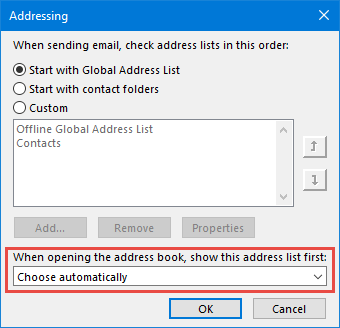
Select which Address List to show first when opening the Address Book.
