
Suggested Contacts folders holds addresses but no suggestions are being made when composing mail
My Suggested Contacts folder is full of contacts with addresses but when I type a name or address in the To line, no suggestions are being made.
Why is this and how can I fix this?
 Even though the Auto-Complete feature and the Suggested Contacts folder in Outlook 2010 are almost serving the same purpose, they are actually 2 separate features with both their own storage.
However, it is quite easy to quickly fill the Auto-Complete with addresses again.
Suggested Contacts vs Auto-Complete
The Suggested Contacts feature creates contact items in the Suggested Contacts folder when you are sending an email to someone who isn’t in your Contacts folder yet.
The Auto-Complete feature keeps a list of addresses of everyone that you emailed to, regardless if or where that contact/address is stored. This list is kept as a combination of a hidden message in your mailbox and in the RoamCache folder on disk (see below).
Note: They already did away with the Suggested Contacts folder in Outlook 2013. For more information see: Suggested Contacts folder missing or doesn’t save new addresses in Outlook 2013 and later.
Resetting the Auto-Complete cache
To reset your cache, it is recommended to use the “Empty Auto-Complete List” button in the Options dialog.
File-> Options-> Mail-> section: Send messages-> button: Empty Auto-Complete List
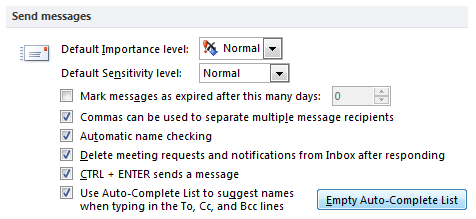
Resetting the Auto-Complete cache is the first step to fix and refill the list.
As an alternative, you can start Outlook with the cleanautocompletecache switch. (Note the space in the command below)
- Start-> Type;
outlook.exe /cleanautocompletecache
In addition, you could manually clean up the RoamCache folder when Outlook is closed.
C:\Users\%username%\AppData\Local\Microsoft\Outlook\RoamCache
Filling the Auto-Complete cache with Contacts and Suggested Contacts
Once you’ve reset the Auto-Complete Cache, you can fill it again with contacts from your Contacts and Suggested Contacts folder in the following way;
- Place Outlook in Offline Mode by clicking on the “Work Offline” button on the Send/Receive tab.
- Create a new email.
- Click on the To… button.
- Select all the addresses from the Contacts folder
- Click on the To-> button
- Repeat step 4 and 5 for contacts stored in other locations which you can select by clicking on the list under Address Book.
- Click OK.
- Send the message.
- Move the message from your Outbox folder back to your Draft folder.
- Place Outlook back in Online mode by again clicking on the “Work Offline” button on the Send/Receive tab. (Note that the icon itself always holds a red cross in it)
Your Auto-Complete feature should now work again when addressing a new email.
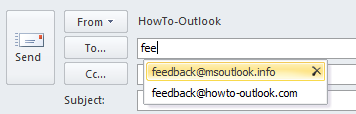
You can quickly refill the Auto-Complete cache after a reset.
Still no suggestions after restarting Outlook?
Is your Auto-Suggest feature broken again after restarting Outlook? As the cache is being stored when Outlook closes, it is very likely that an add-in isn’t letting Outlook close gracefully.
To troubleshoot this see; AutoComplete addresses lost in Outlook after restart.
