
Uninstalling Outlook or Office updates
After installing an update for Outlook, I'm encountering some strange issues with Outlook which I think are directly related to the update and not to any other Outlook issue.
How can I uninstall the update again to verify if the issue will indeed be gone then?
 While in general updates should improve Outlook, on rare occasions updates get pulled due to severe issues or receive a recommendation to uninstall them if you are seriously affected by it.
There are several ways to do this depending on the type of update, your version of Outlook and your version of Windows.
Note: If you are using a Click-to-Run installation of Office such as Microsoft 365 Home/Personal, Microsoft 365 Apps for Business/Enterprise, Office 2016 Home and Business or Office 2019, see the instructions at Uninstall Outlook Microsoft 365 and Office 2013/2016/2019 Click-To-Run Updates instead.
Security update, regular update, rollup update, Service Pack or hotfix
 Just a word of caution; if the update you are trying to uninstall is an update that fixes a security issue, then it is highly recommended to leave the update installed and see if there is a workaround available for the issue you are experiencing with the update.
If there is no workaround, read the security bulletin for the update to verify whether you are affected by this security flaw and/or if there are other ways to protect you from this. If there is, you can safely remove it if you take those measurements.
Service Packs should not be removed as Microsoft no longer supports Office 2013 without Service Pack 1.
Other non-security updates and hotfixes can be safely removed.
Note: When a fixed version of a security update is being released, make sure you install it again as soon as possible.
Method 1: Standard uninstall method
 The recommended method is to remove the update via Control Panel. Most updates can be removed this way.
- Windows 10
Start-> type; Control Panel-> Uninstall a Program-> View installed updates- Alternative way to access this overview is;
Start-> Settings-> Update & Security-> View update history-> link at the top: Uninstall updates
- Alternative way to access this overview is;
- Windows 8
Right click on the Start Menu button-> Control Panel-> Uninstall a Program-> View installed updates - Windows 7
Start-> Control Panel-> Uninstall a Program-> View installed updates
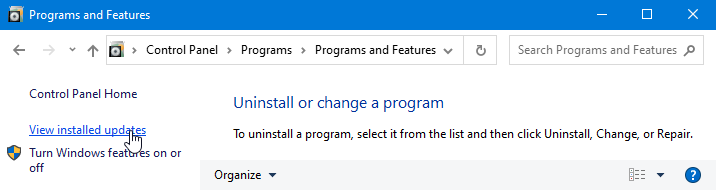
The overview is sorted by “Installed on” by default which should help locating the update.
You can also type “KB” and the number in the search field in the top right corner to easily locate the update.
For instance; KB2509470.
Once found, select the update and press the “Uninstall” button.
Method 2: System Restore
 Some updates cannot be removed via the “Installed updates” list. In that case you can use System Restore to revert your system back to a date before you installed the update.
This will uninstall other updates or applications that you have installed between then and now as well so make sure you reinstall those afterwards.
Note: Using System Restore does not affect your data but it never hurts to make a backup of your Outlook data before proceeding.
You can start System Restore in the following way;
- Windows 8 and Windows 10
Start-> type: Create a Restore Point
System Properties will open to the System Protection tab where you can click the System Restore… button. - Windows 7
Start-> All Programs-> Accessories-> System Tools-> System Restore
or
Start-> type: System Restore
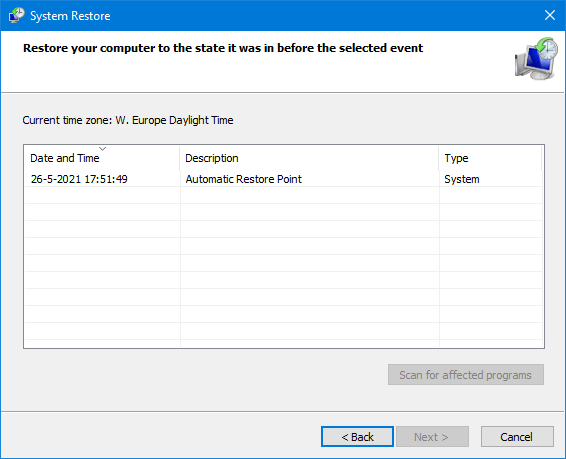
Overview of available System Restore points.
Method 3: Reinstall Office
 If the update cannot be uninstalled and you have System Restore disabled or there is no restore point from before you installed the update, then you’ll have to reinstall Office. This actually sounds more drastic than it is; It basically is only time-consuming.
Before you start, make sure you have the installation file/CD/DVD for your version of Office and your Product Key available. If you have misplaced them see; Office replacement installation disks and keys.
Note: While reinstalling Office will not delete any settings or data, it never hurts to make a backup of your Outlook data before proceeding.
After you have reinstalled Office, make sure you reinstall the latest Service Packs and updates for Office again (except of course the one that was bugging you).
Block update from being automatically installed
 When you have uninstalled an update which has not yet been pulled by Microsoft, it will be automatically installed again if Windows Update is configured to automatically install updates.
You can prevent this from happening in the following way.
Windows 10
There is an option to “Pause Updates” for 7 days. You can press this button up to 5 times so you can wait at least for the next Path Tuesday (second Tuesday of each month). This is usually long enough for a fixed update to become available.
- Start-> Settings-> Update & Security-> Windows Update-> Pause updates for 7 days
Another way to go would be to disable the option “Receive updates for other Microsoft products when you update Windows”. This would then prevent Windows Update to receive Office updates but also other non-Windows updates.
- Start-> Settings-> Update & Security-> Windows Update-> Advanced options
Windows 7 and Windows 8
When the update is being offered again in Windows Update, you can hide the update. Hidden updates won’t be (re-)installed automatically so regularly check if a fix has been released yet.
- In Windows Update, right-click on the update and select; Hide Update.
Note: You can unhide the update again to get the newly released version if it is not automatically offered already. You’ll find the “Restore hidden updates” option in the left panel of Windows Update.
Another way to go would be to set Windows Update to download and notify only instead of letting Windows Update automatically download and install updates. This will allow you to review and (de)select updates that would otherwise be automatically installed.
- In Windows Update, there is a “Change settings” link in the left panel. Set the “Important updates” option in this panel to;
Download updates but let me choose whether to install them.
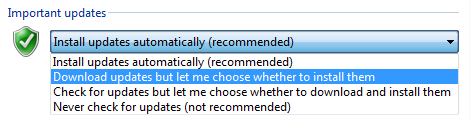
When you set Windows Update to download only, you can review and select which updates to install and when.
